How to use Crossbuck
Crossbuck tells you when a railroad crossing ahead may be blocked by a train, says it out loud while you drive, and points you to the nearest bridge or underpass. Here's how to use it, on Android and iPhone. Coming soon to iPhone and Android.
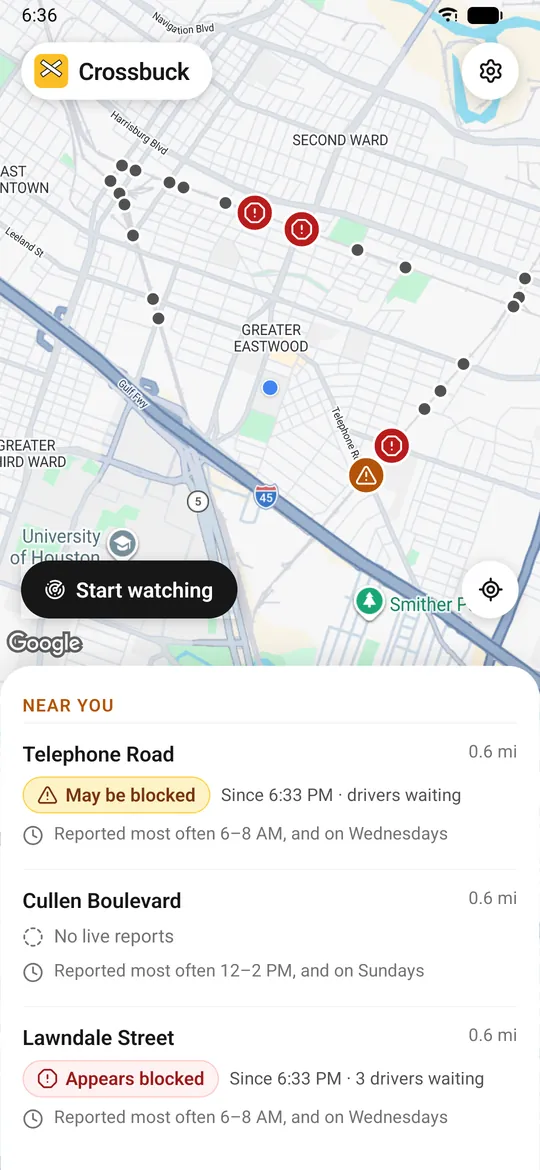
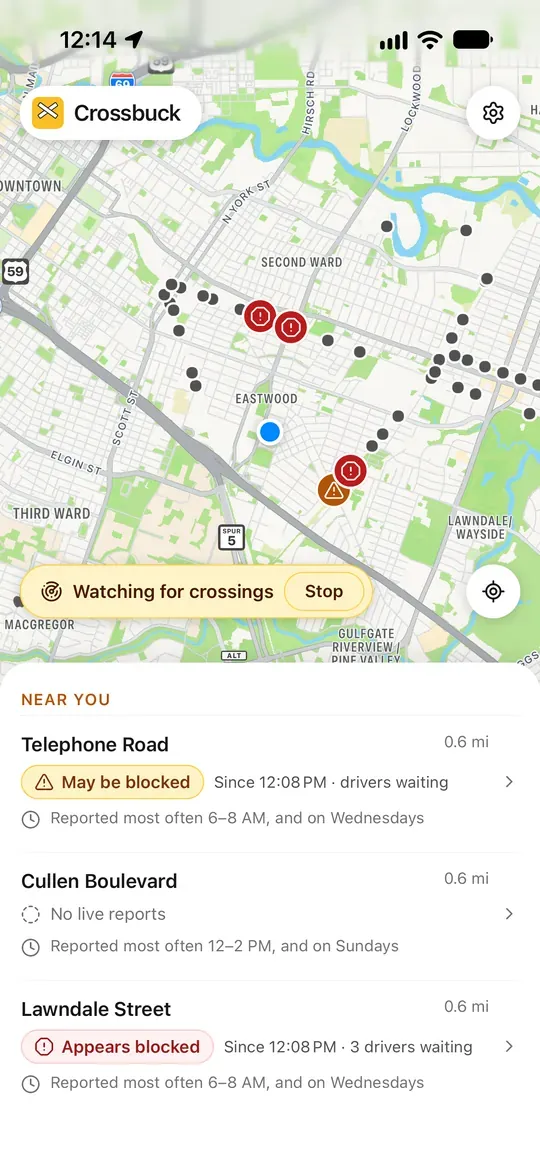
1. Before you drive: tap Start watching
The first time you open Crossbuck, allow location "While using the app" and allow notifications. Before a drive, open Crossbuck and tap Start watching. It keeps watching while you use your maps app or lock the phone, and stops by itself after 10 minutes without moving, or when you tap Stop. On Android you can also long-press the Crossbuck icon and pick Start watching.
2. While you drive: listen for the heads-up
When other drivers using Crossbuck are stopped at a crossing you're heading toward, Crossbuck says so out loud: "the railroad crossing ahead on Eastwood Street appears blocked, for 10 minutes so far", and the nearest way around. If another app is on screen, it's a notification too. "May be blocked" means one driver is waiting; "appears blocked" means two or more. Crossbuck also warns about the next crossings on the same line, which the same train often blocks.
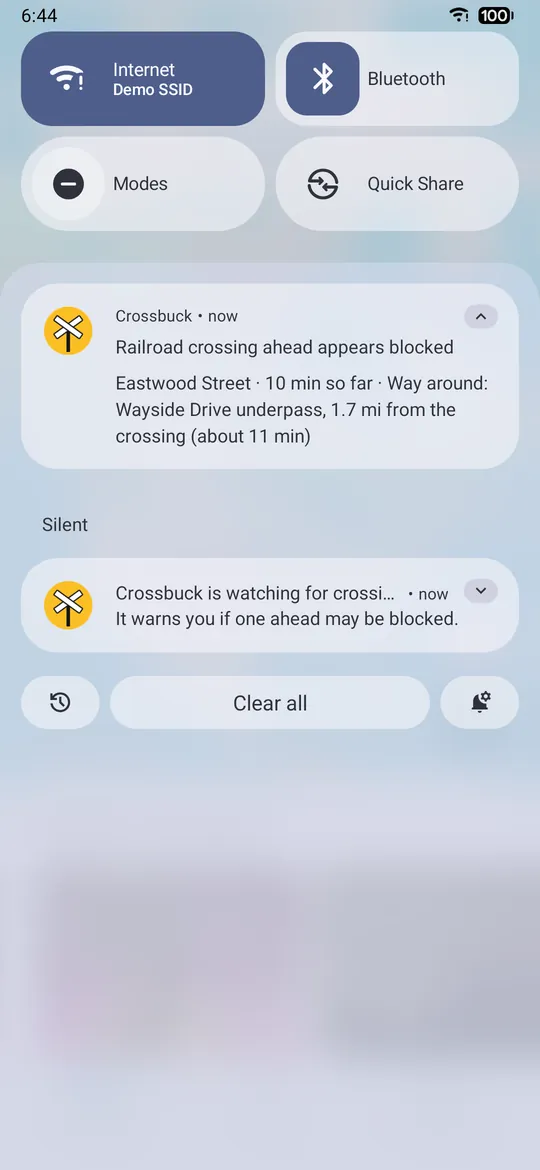
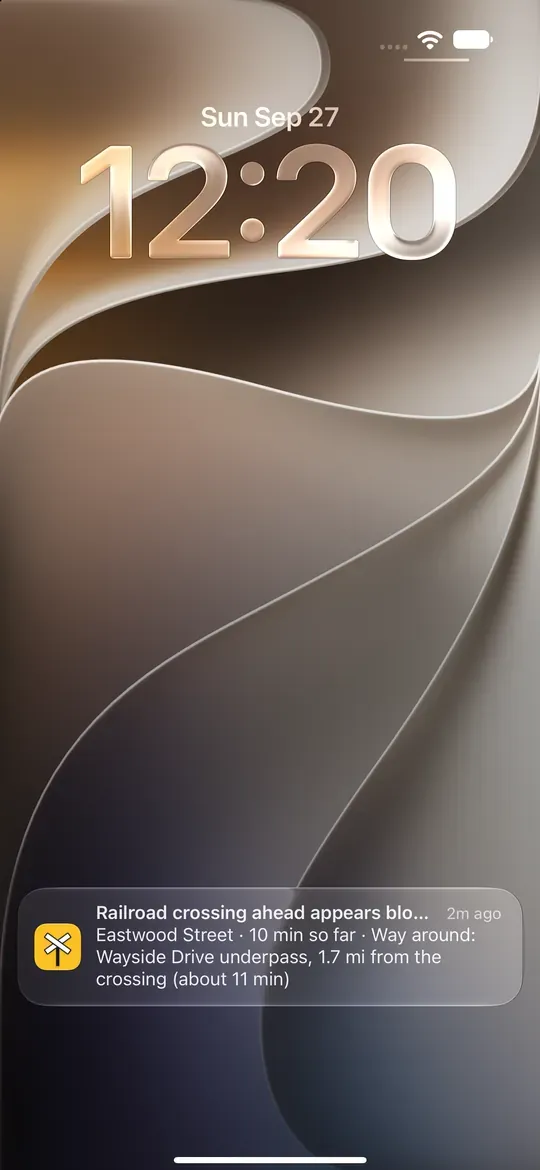
The warning is spoken like navigation directions: music gets quieter while it plays, and silent mode doesn't mute it. If your phone's volume is all the way down, Crossbuck shows a notification instead and tells you the volume is off.
3. Take the way around
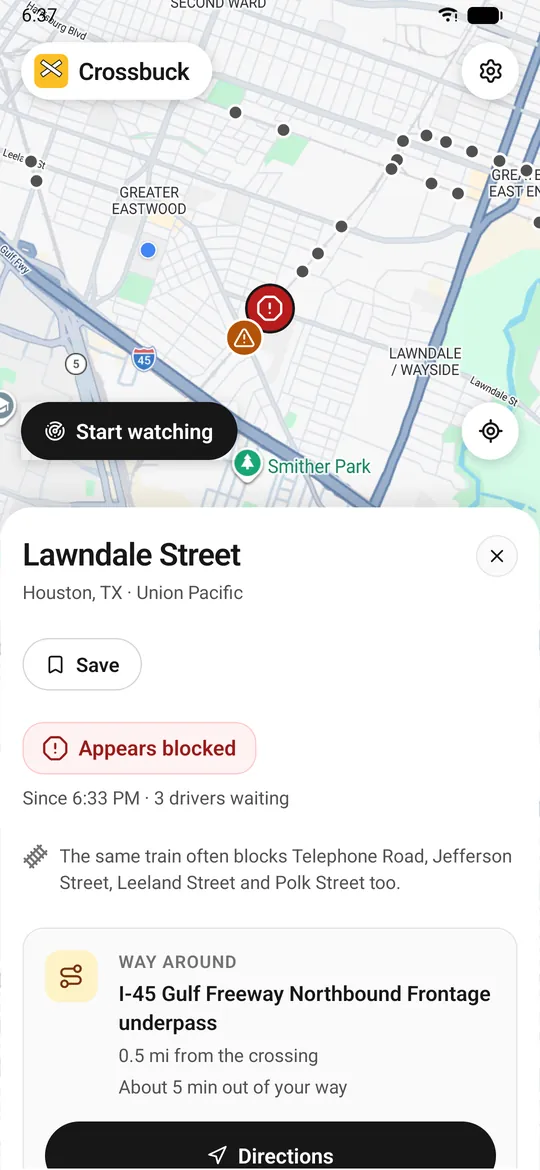
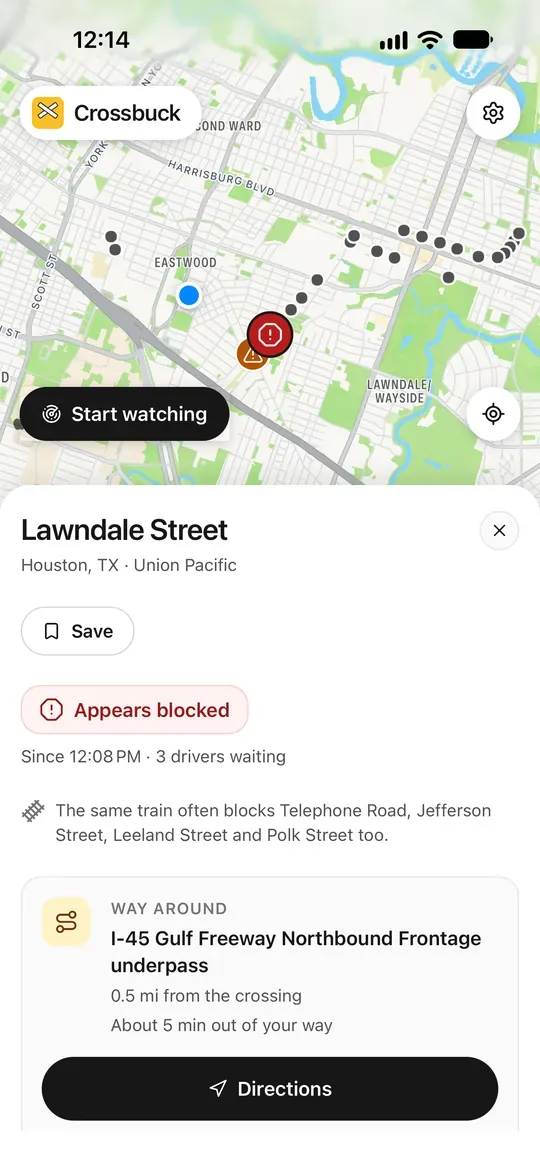
Tap a crossing on the map, or in the list, to see its card: whether it's blocked and since when, which crossings the same train often blocks too, and the way around, the nearest bridge or underpass across the same line. Directions opens Google Maps or Apple Maps with the route. When parked, Share sends the way around to another app, a message, or your car's app (Tesla's app can send it to the car).
4. If you're the one stopped at a train
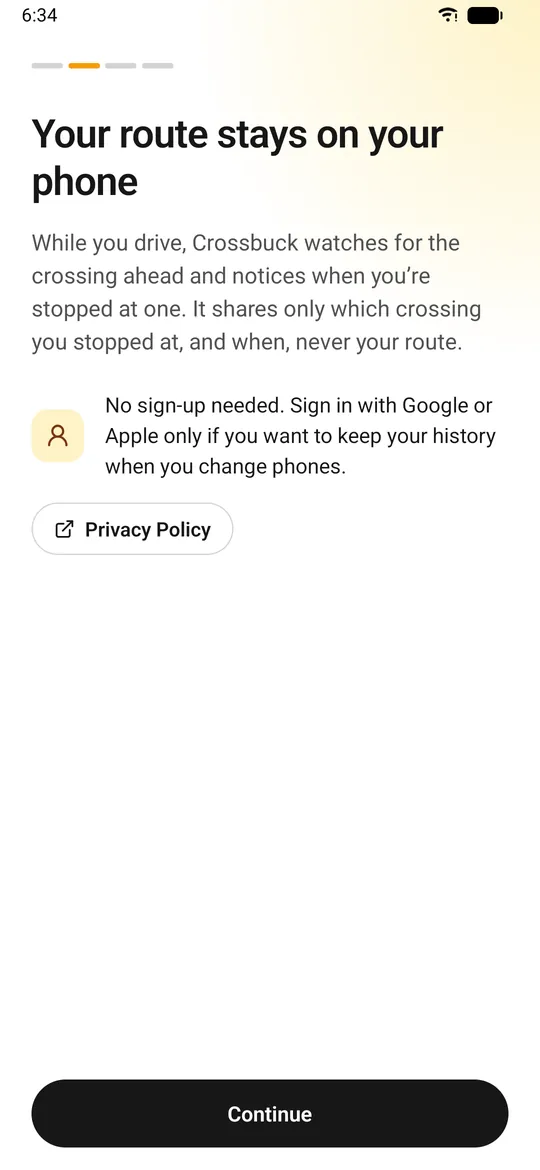
You don't need to tap anything. If Crossbuck is watching and you've been stopped at a crossing for 5 minutes, it lets other drivers know it may be blocked. When you drive on through, it tells them traffic is moving again. It reports only which crossing and when, never your route.
5. At home: save the crossings you use
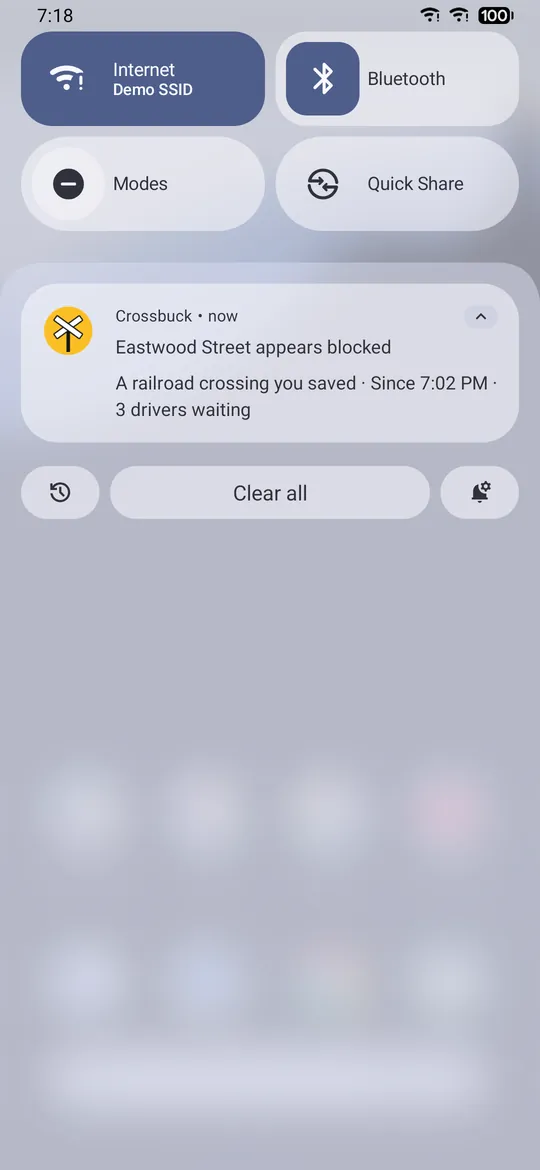
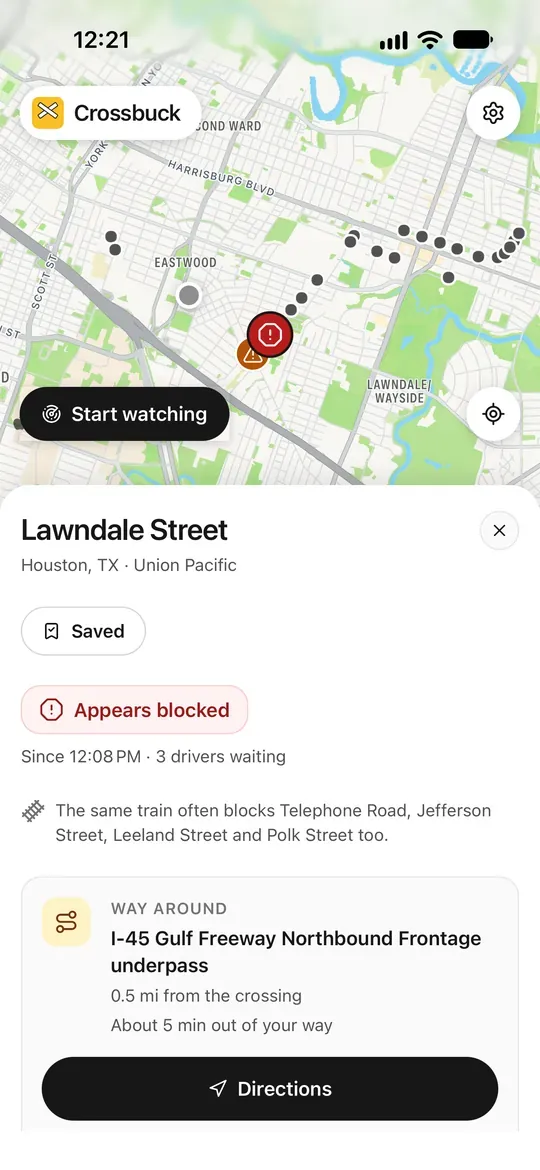
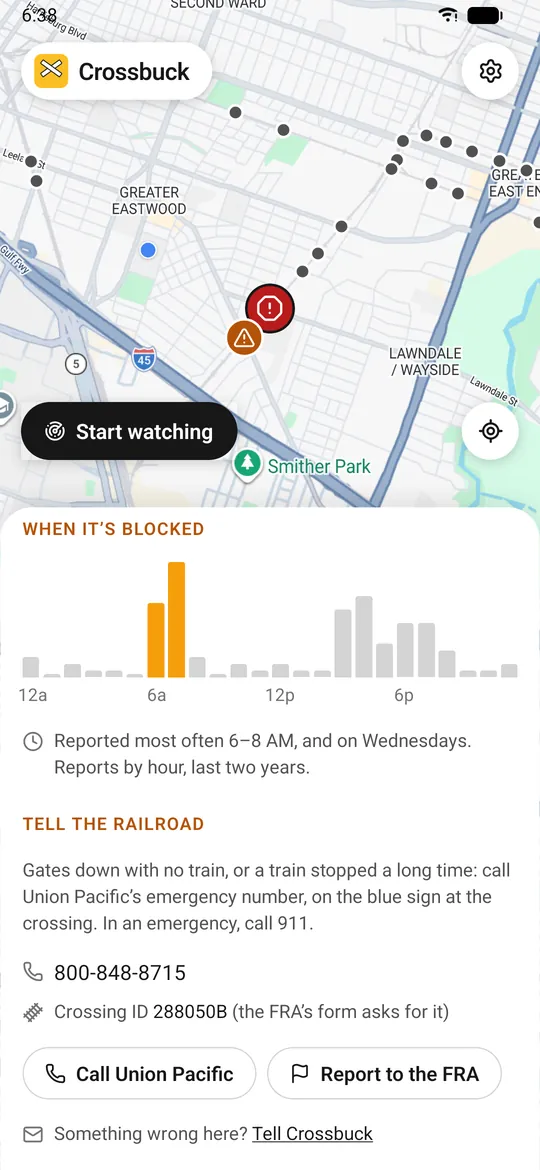
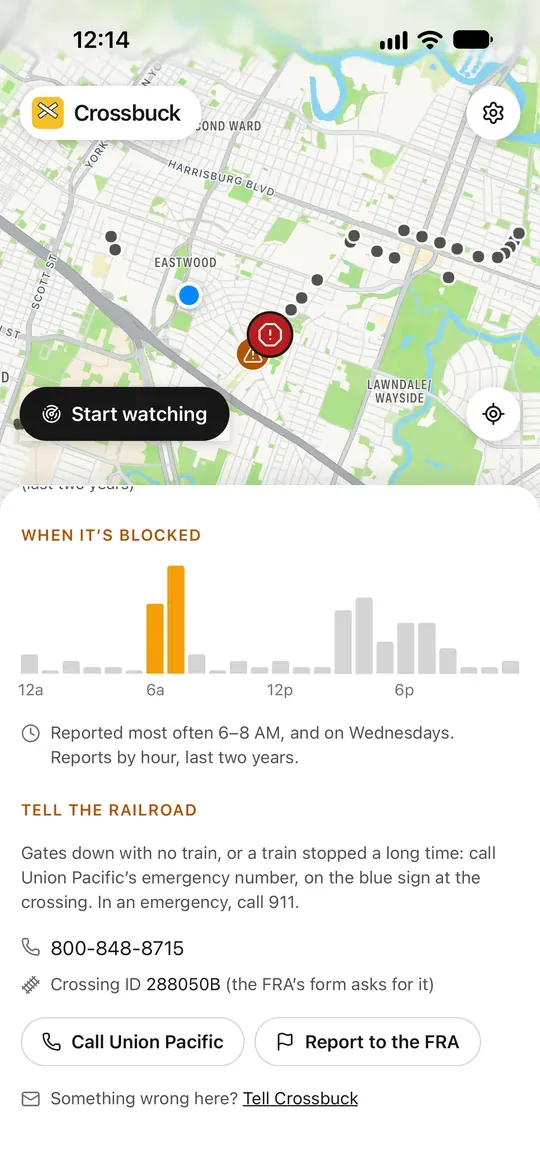
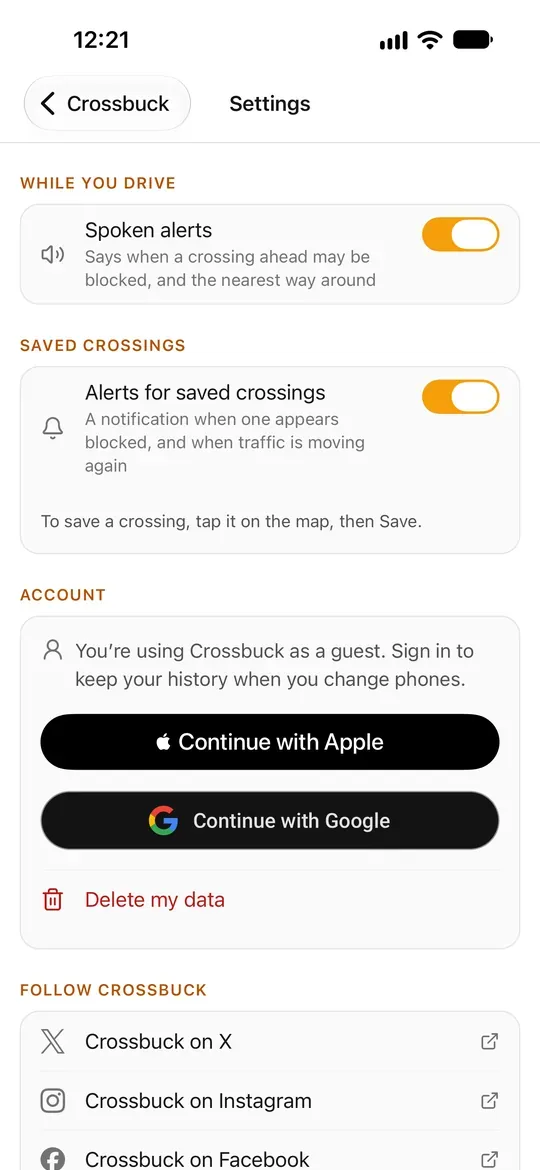
Tap Save on a crossing's card to get a notification when it appears blocked, and again when traffic is moving, even when you're not driving. Your saved crossings are listed in Settings, where you can turn these alerts off. Each card also shows when the crossing is usually blocked, from reports to the Federal Railroad Administration, and during those hours says it's "often reported blocked around this time" when no one is reporting it live.
6. When parked: tell the railroad
Gates down with no train, or a train stopped a long time? Each crossing's card has the railroad's emergency number, from the blue sign at the crossing, and the crossing's ID. Call and Report to the FRA show only when you're not moving. In an emergency, call 911. Something wrong on a card, like a way around that's closed? Tap Tell Crossbuck.
7. Settings and privacy
In Settings you can turn spoken alerts and saved-crossing alerts on or off, sign in with Google (or Apple on iPhone) to keep your account when you change phones, and delete your data. No account is needed. Your GPS trail stays on your phone: Crossbuck's servers only learn which crossing you stopped at and when. See the Privacy Policy.
More help
Not getting warnings? See Support. Where the numbers come from: How we count. Always follow the signals at the crossing: a crossing only shows as blocked when drivers using Crossbuck are waiting there.